
Urgent air freight, time-sensitive cargo, airport-to-airport delivery, ULD shipments, or carriers looking for high-value cargo leads — what unites all of this? The Logistics Map is the platform for this bidirectional air logistics cycle.
With the Cargoes tab in AirRates Logistics Map, shippers get a tender-style marketplace to place air cargo requests and collect tailored offers. Airlines, freight forwarders, GSAs, air cargo agents, and logistics providers get live requests they can quote directly from their workflow.
Let’s explore how the Cargoes tab helps both sides streamline air shipping.
Overview of the “Cargoes” tab
Go to AirRates Logistics Map and open the Cargoes tab.
The map works with connected air logistics layers:
- Cargoes — active air freight requests and shipping leads.
- Transport — available air transport services and capacity.
The Cargoes tab adapts to your role, whether you are looking for an air freight quote or offering air cargo services.
You can work in two views:
- Map view — best for airport geography, route visualization, clusters, and live market scanning.
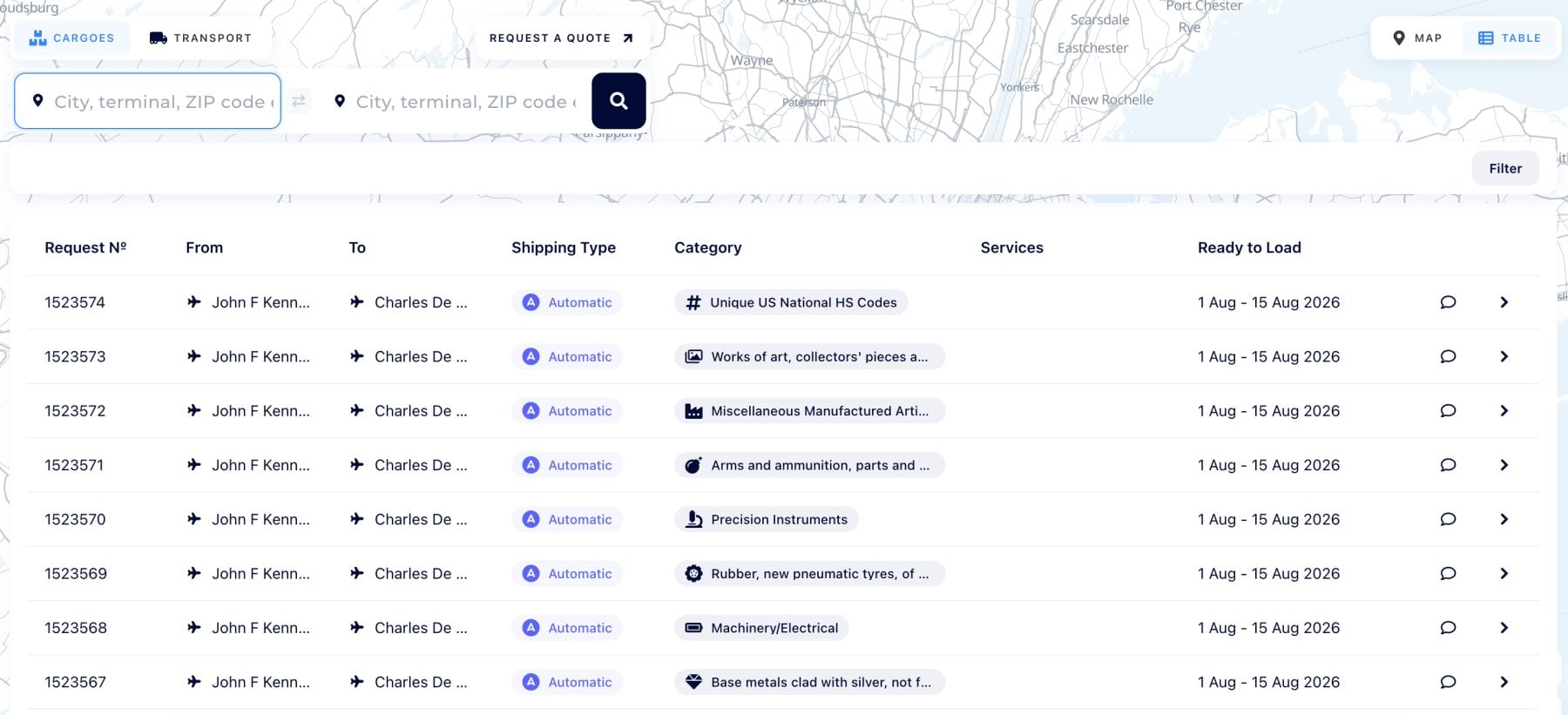
- Table view — best for comparing many requests by route, shipping type, category, services, and ready-to-load date.
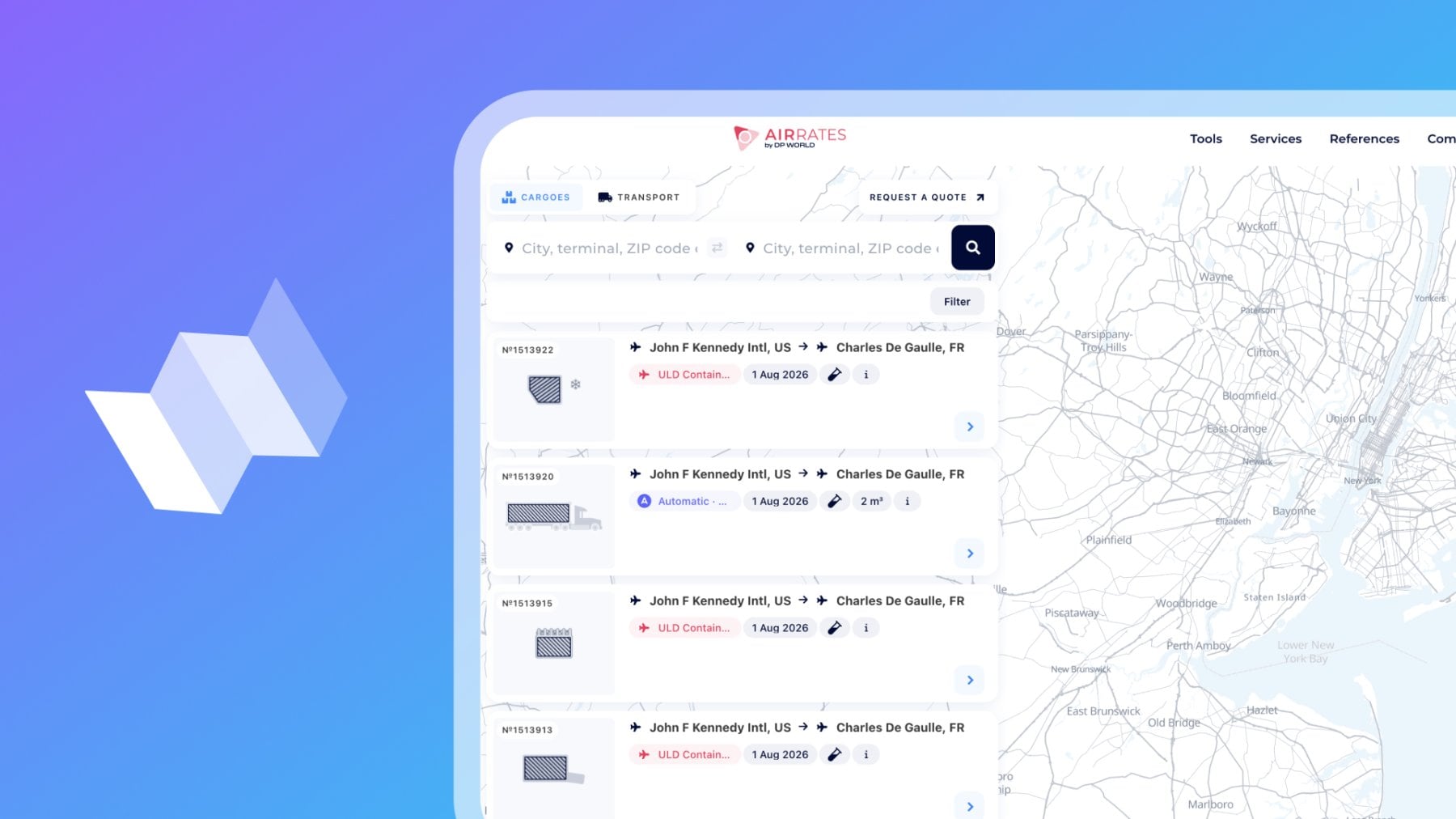
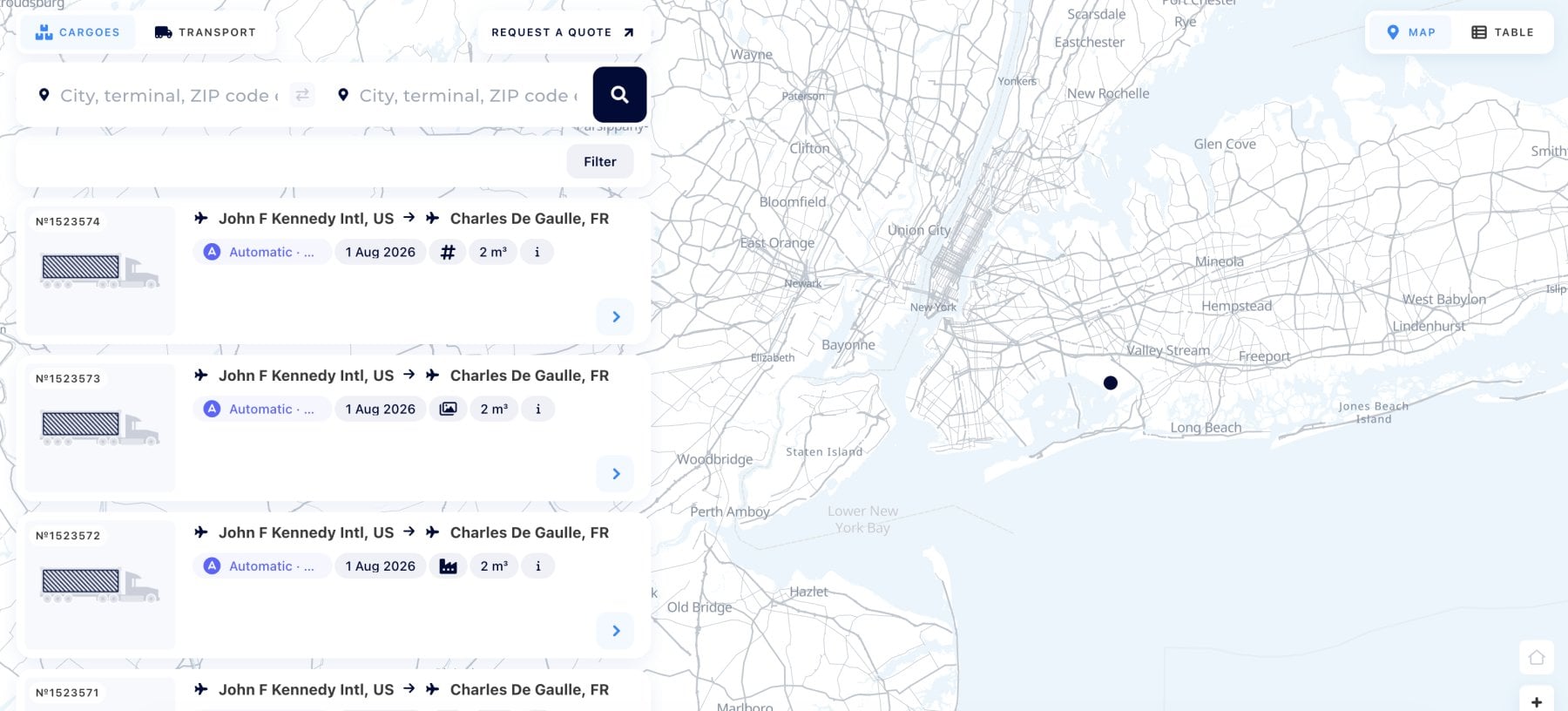
Cargo requests appear as cards on the left and as airport points or route lines on the map. Once opened, a request shows the full air route, shipment summary, and available actions.
For shippers: place air cargo and gather the best offers
Carrying out urgent air freight or scaling time-sensitive international shipments? Reliable providers, fast response, and accurate cargo details are the key to both.
With AirRates Cargoes, there is no need to send the same request manually to every airline, forwarder, or air cargo agent. Place your cargo request once, and let relevant providers find it, quote it, and compete for the shipment.
A cargo request can include the following:
- airport of loading;
- airport of discharge;
- ready-to-load date;
- air shipping type;
- weight;
- volume;
- ULD or standard cargo details;
- product category;
- additional services;
- special comments.
The more precise your request is, the more tailored offers providers can send.
How air cargo requests appear on the map
Each request card shows the essentials before you open the full details:
- request number
- airport of loading and airport of discharge
- shipping type
- ready-to-load date
- product category
- weight or volume
- service icons
For example, a request can show John F Kennedy Intl, US → Charles De Gaulle, FR with ULD Container, readiness date, cargo category, weight, and volume.
The map also displays request locations and air route lines, so users can evaluate opportunities by airport geography, not only by list data.
Search requests by air route
Use the search fields at the top of the Cargoes tab:
- From: city, terminal, ZIP code, or airport
- To: city, terminal, ZIP code, or airport
Use the switch icon between the fields to change route direction.
Click the search button, and the map updates with matching cargo requests.
This is useful when the air lane is the main factor — for example JFK to CDG, or any other airport-to-airport direction where timing and capacity matter.
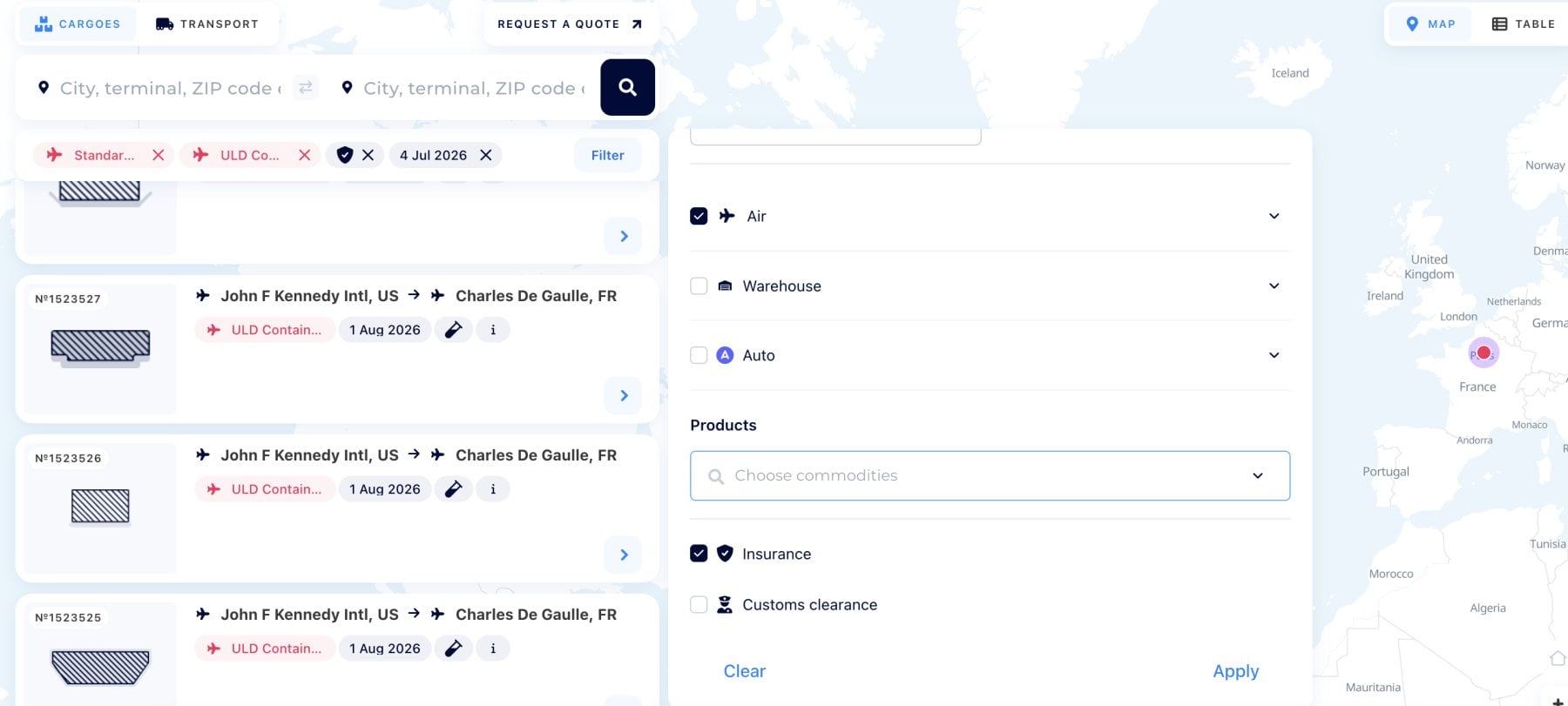
Use filters to narrow air cargo requests
Click Filter to search with more precision.
You can filter requests by:
- origin radius;
- destination radius;
- country;
- request ID;
- ready-to-load date;
- transport mode;
- air shipping type;
- warehouse-related options;
- auto options;
- product category;
- additional services.
Selected filters appear as chips under the search bar. Remove any chip to adjust the list instantly.
Use Clear to reset filters and Apply to update results.
Air shipping types
The Cargoes tab supports air-specific request types.
Available air options include: Standard cargo (for general air freight shipments that do not require a dedicated ULD setup), ULD Container (for shipments planned in a Unit Load Device container), or Automatic (for automatically generated or structured requests that can be matched with available air logistics options).
These filters help shippers describe the request correctly and help air cargo providers focus on shipments that match their equipment, route network, and handling capability.
Open an air cargo request
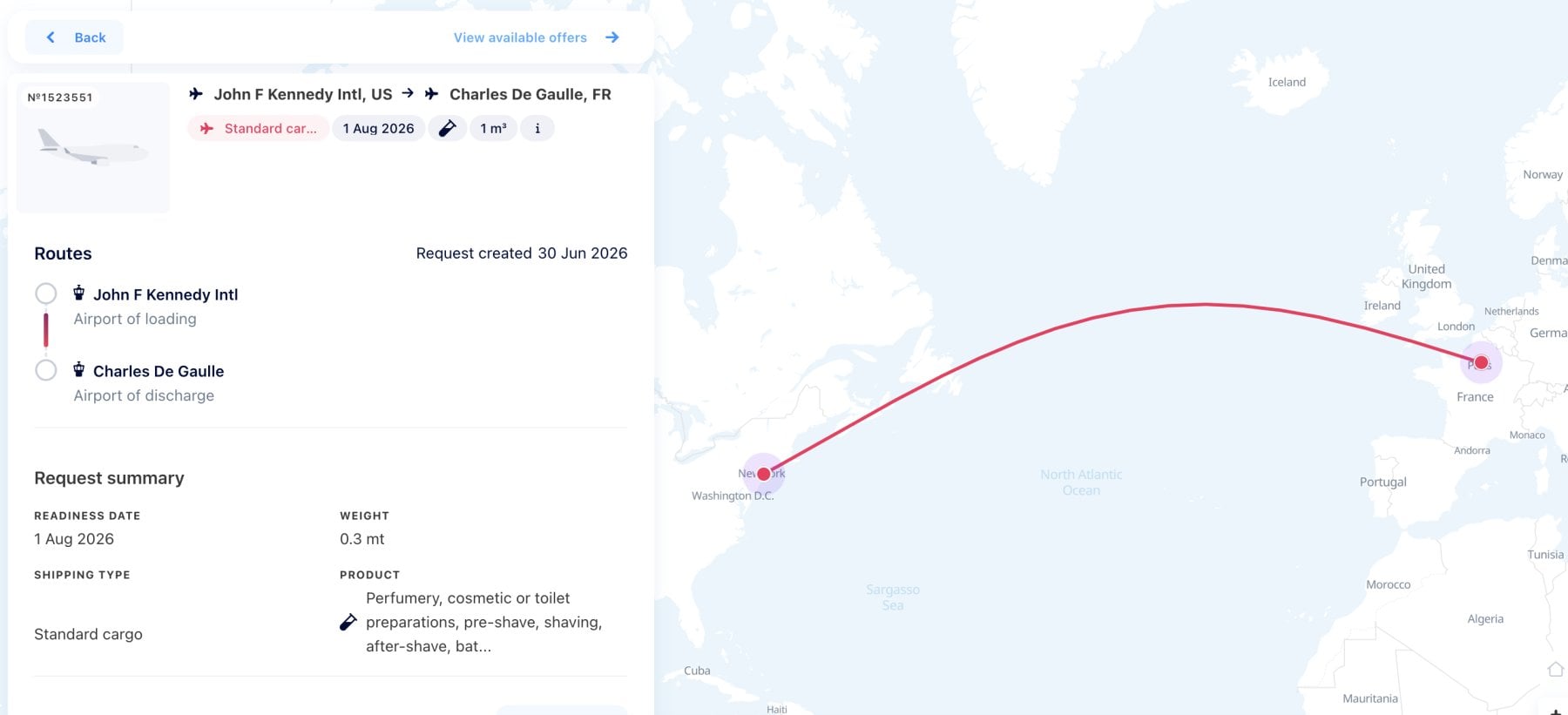
Click the arrow on a request card to open its full details.
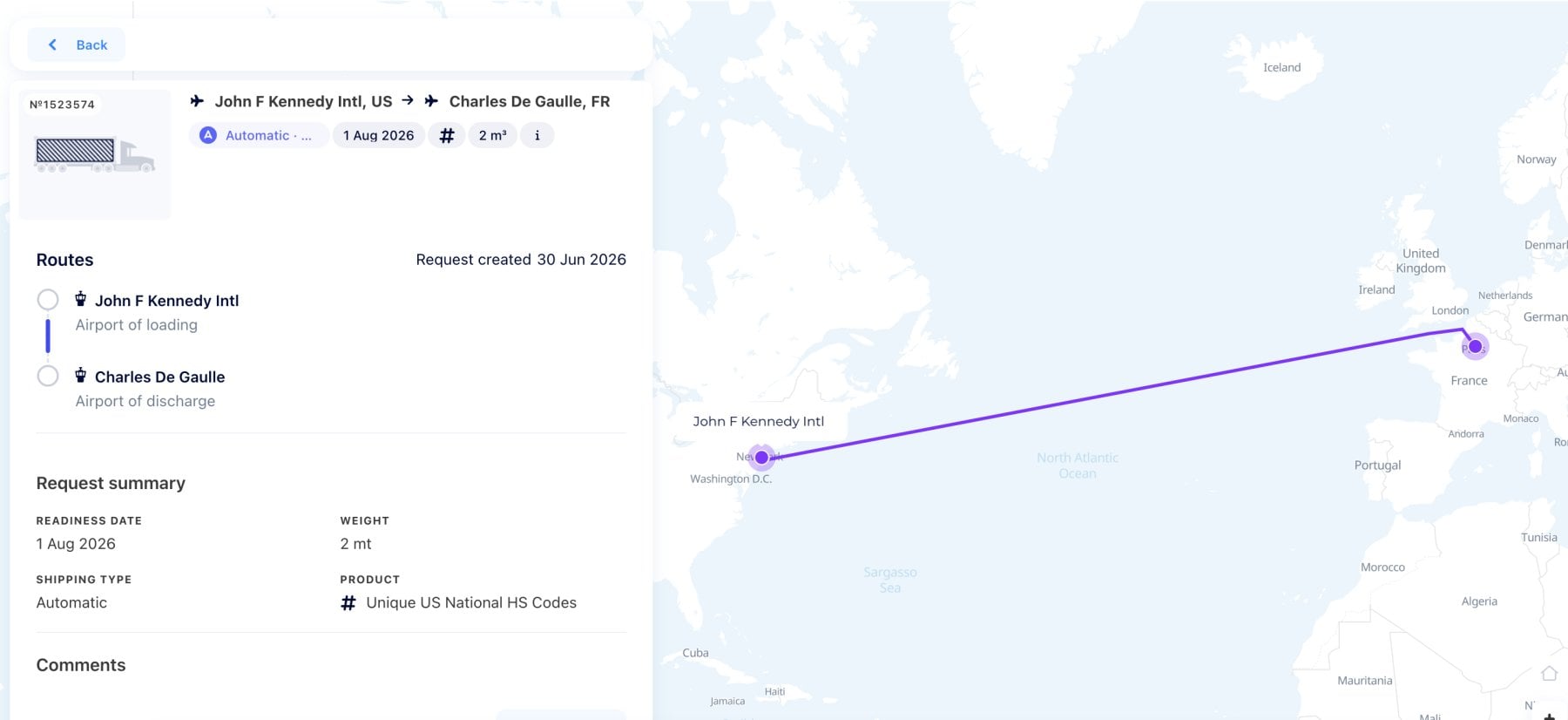
The route is drawn on the map, so both shippers and providers can instantly understand the air corridor.
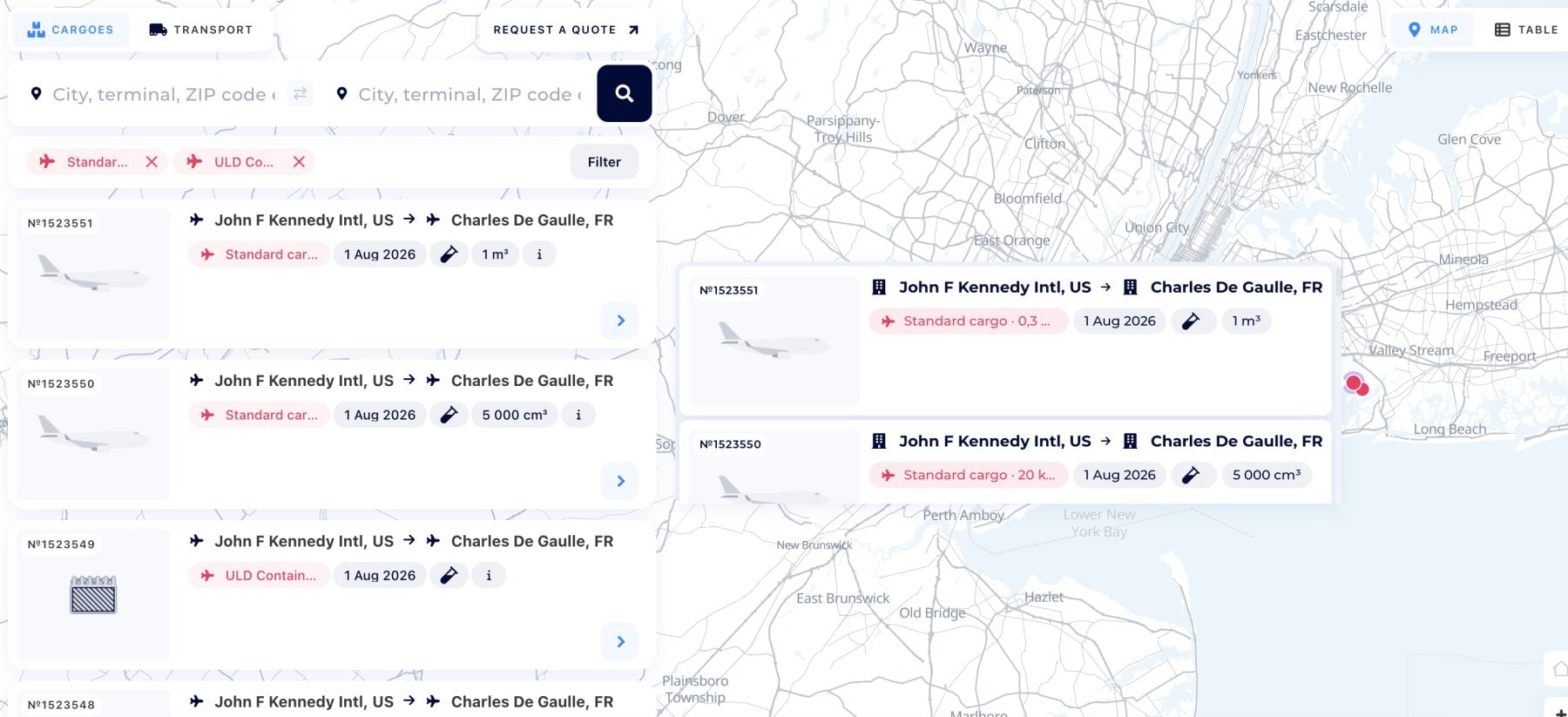
From the card, users can copy the request link, view available offers, or quote the request depending on the account role.
View available offers
For shippers, the View available offers button connects the cargo request with available air freight options via Logistics Explorer.
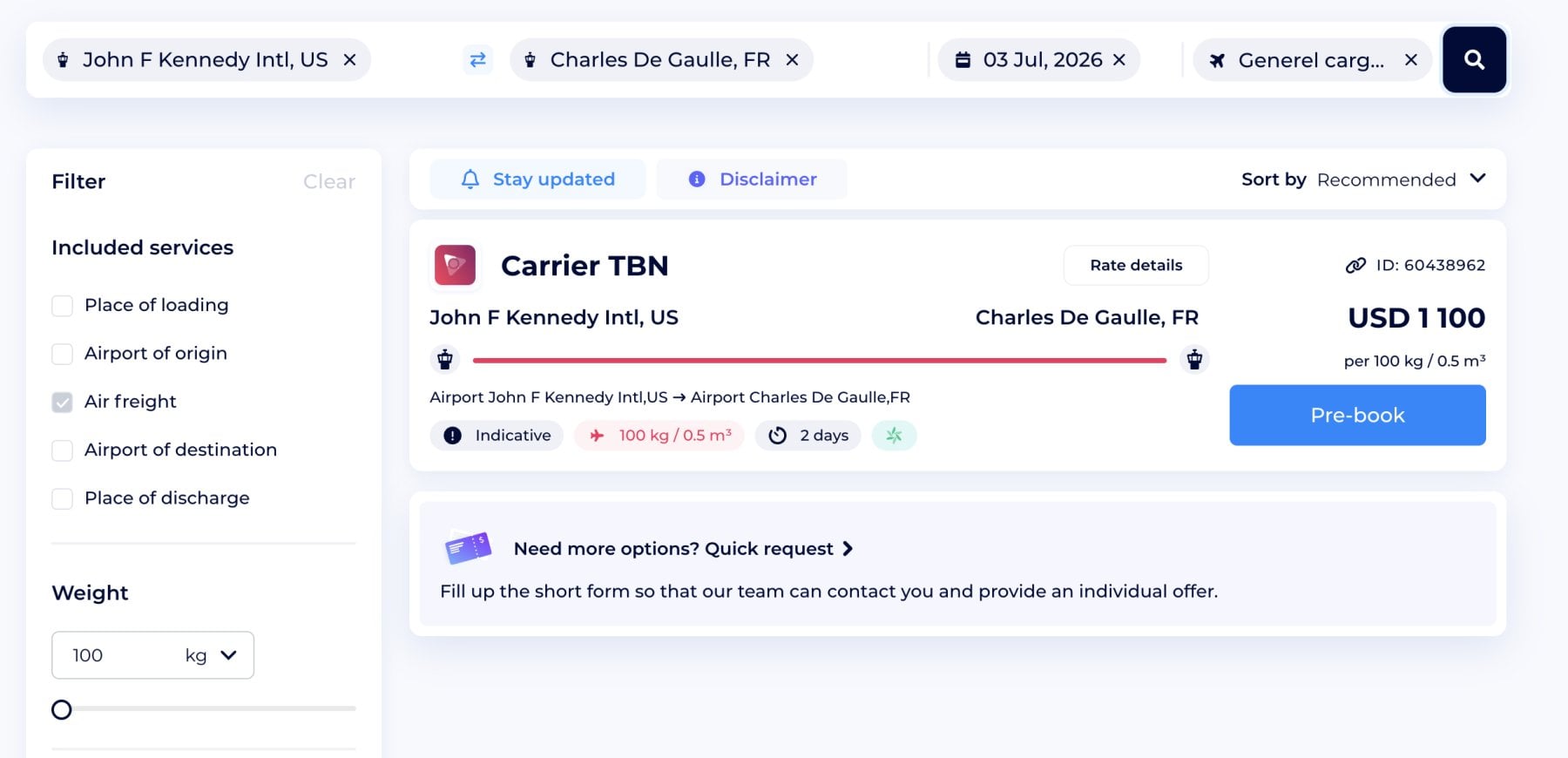
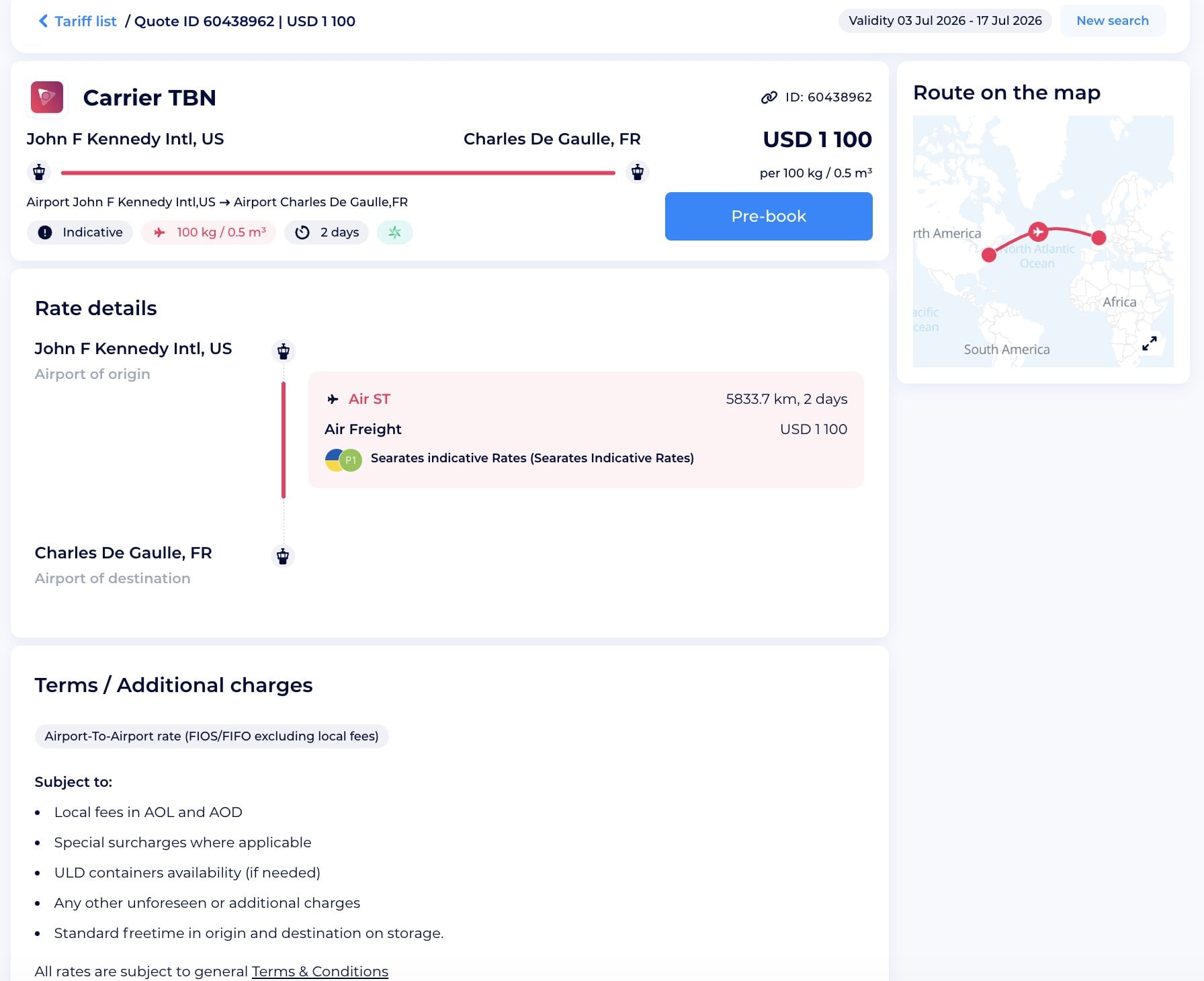
The process keeps the journey connected: request, market visibility, available rates, comparison, and booking.
The Copy button copies the link to the selected cargo request.
Use it to share the request/air freight service offer with colleagues, air cargo agents, procurement, or operations teams.
No screenshots, no repeated route details — just one direct request card.
What’s in the result for shippers?
Shippers get a faster way to gather tailored air freight offers.
Instead of waiting for separate replies in different channels, you can manage cargo visibility, compare available options, and move from request to offer in one workflow.
For airlines, freight forwarders, GSAs, and air cargo providers: find leads and quote them
For air cargo providers, the Cargoes tab works as a lead generator.
You get access to live shipper requests with route, ready-to-load date, air shipping type, product category, weight, volume, and service requirements.
Need to fill available air capacity? Looking for requests on a specific airport pair? Want to quote ULD cargo or standard air freight? Open Cargoes and start from the map, route search, or filters.
Find cargoes that match your air capacity
Search by airport route, zoom into a region, or filter requests by:
- ready-to-load date;
- Standard cargo;
- ULD Container;
- Automatic;
- product category;
- additional services;
- origin and destination radius;
- request ID.
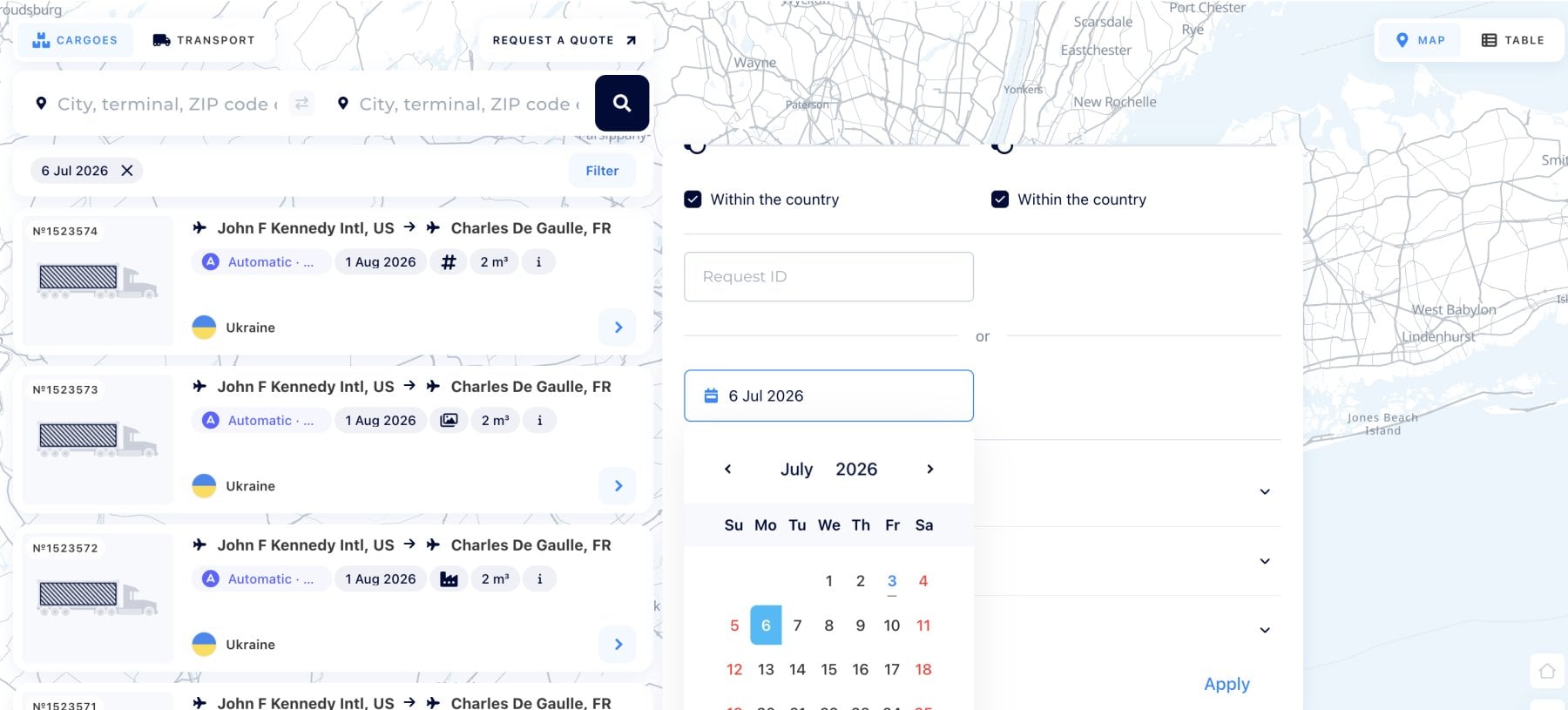
Request cards help you decide quickly. You can see whether the cargo fits your route, timing, handling requirements, and service capability before opening the full details.
Open request details
When a provider opens an air cargo request, the card shows all provided shipment information:
- route;
- airport of loading;
- airport of discharge;
- request creation date;
- readiness date;
- shipping type;
- weight;
- product;
- comments;
- extra details.
The map shows the route visually.
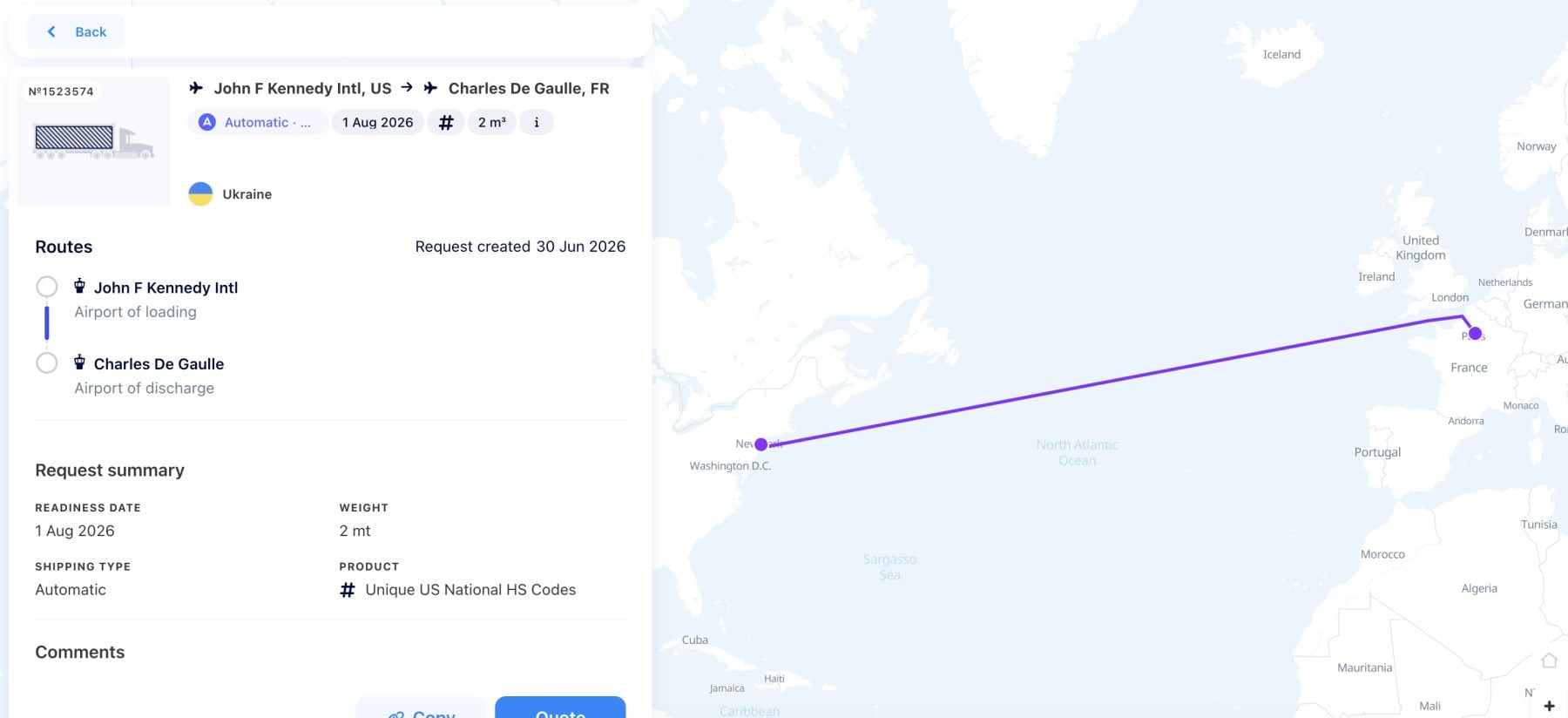
If the request fits your capacity, continue with Quote.
Quote an air cargo request
For provider accounts, the request card includes the Quote button.
Click Quote, and the request moves into your operating workspace for further quotation management.
There, the provider can prepare an individual quote with route, service, transit time, freight charges, validity, terms, and offer details.
This turns a map lead into a real quotation without losing request context.
What’s in the result for air cargo providers?
Airlines, forwarders, GSAs, and logistics providers reduce manual searching and turn available capacity into a sales pipeline. Instead of waiting for random inquiries, find cargoes that already match their preferred route, air shipping type, timing, and service capability.
One click on Quote moves the request into quotation management, where the provider can build, manage, and send the offer professionally.
Web integration
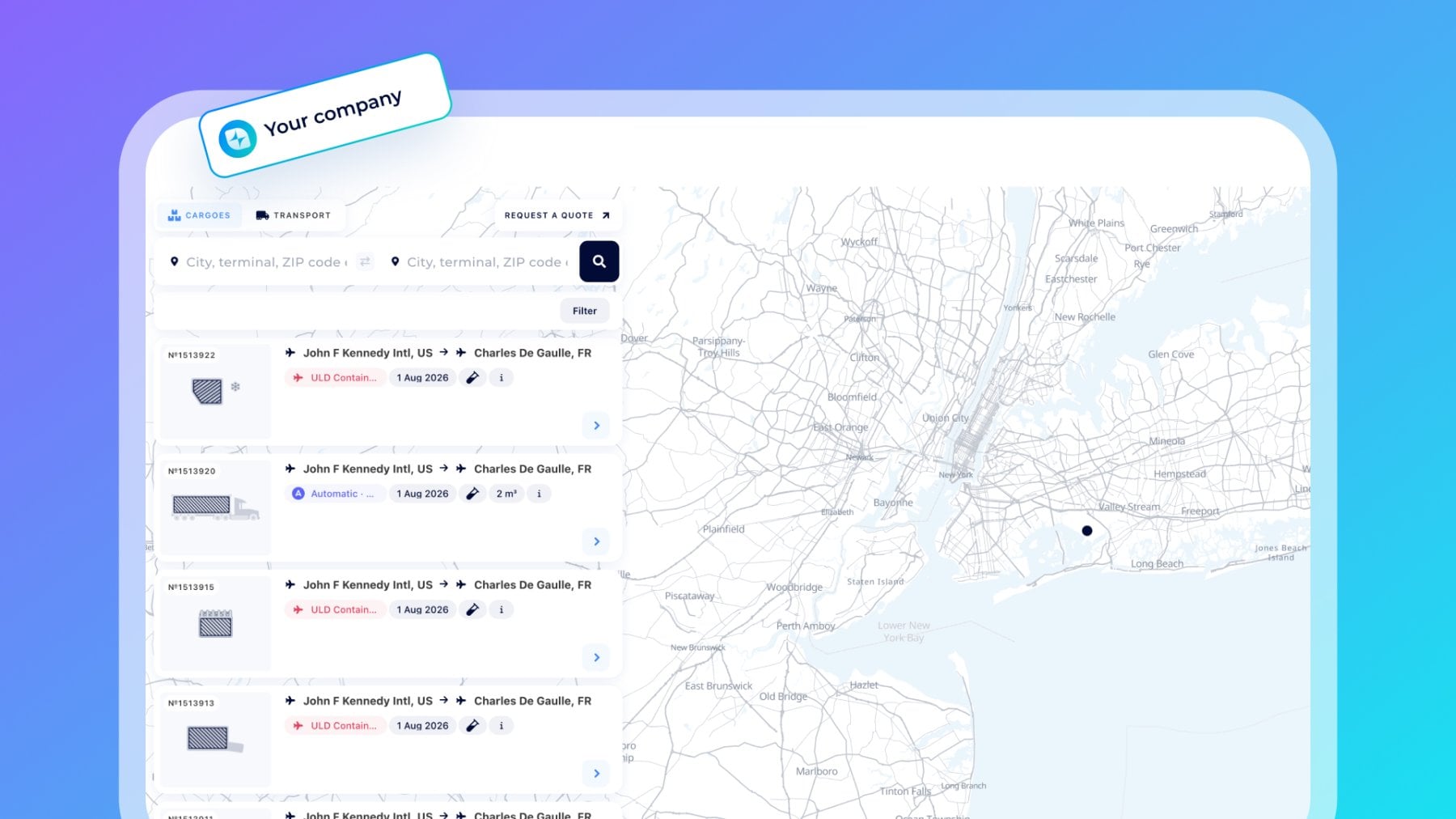
Extra advantages are available with the integration of the Logistics Map into your own website.
A white-labeled Cargoes module can help shippers create their own air freight tender platform, while airlines, forwarders, and air cargo providers can use it as a branded lead generation map.
It can support cargo request visibility, airport-based search, customer-facing request boards, and provider quotation workflows.
API connection
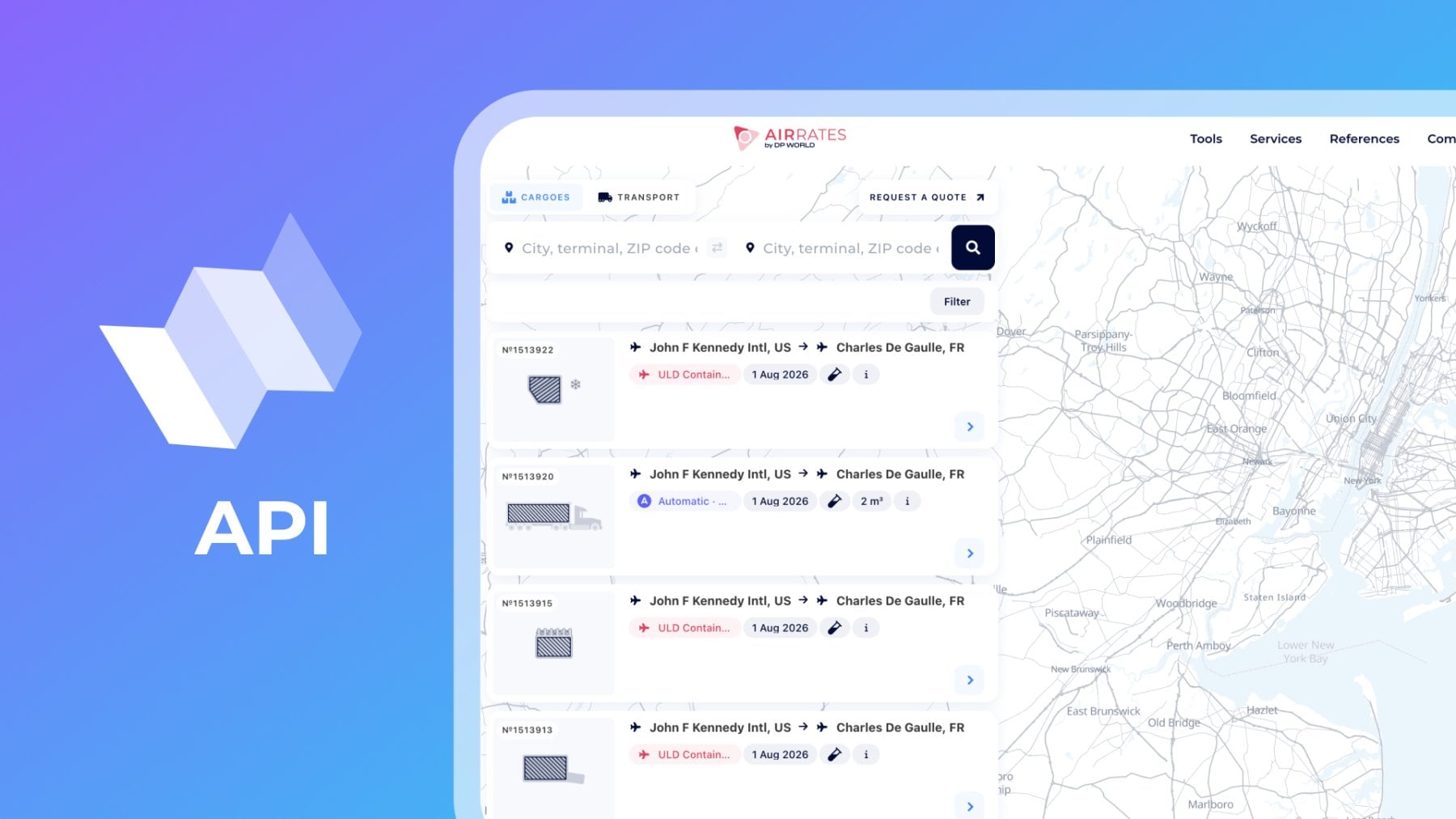
With an API connection, companies can automate the cargo request and quotation process.
The Cargoes flow can be connected with internal systems such as ERP, CRM, TMS, pricing engines, airline systems, or custom dashboards to manage air cargo request uploading, lead synchronization, capacity matching, dynamic pricing, and tenders. Also, provide a quotation workflow and automated routing of leads to operation teams.
The process works in both directions: shippers advertise air cargo requests, while providers discover matching leads and quote them faster.
To sum up
AirRates Cargoes turns air freight requests into a searchable and quotable marketplace. Shippers get a faster way to publish air cargo demand and collect relevant offers. Airlines and air cargo providers get live leads to fill capacity and grow revenue. Forwarders and GSAs get a structured tool for route search, cargo matching, quoting, and customer support.
For advanced access and custom integrations, reach out to us at it.sales@searates.com.